Medical Imaging Interaction Toolkit  2025.12.02
Medical Imaging Interaction Toolkit
How to create a MiniApp command line tool

This page will give you an overview of creating your own command line tool that can be integrated into a MiniApp.

What's a MiniApp command line tool?

A MiniApp command line tool allows for configuration of command line arguments and eases the access to these argument values. Additionally, a command line tool provides a XML representation of the configured arguments. This XML representation can be used for automatic user interface generation.

Setting up a command line tool

This section describes the most important code parts of a command line tool using the ExampleToUpperCaseMiniApp.cpp as an example. See How to create a new MITK Module for a suggested structure of a new module and its MiniApps.

Each MiniApp contains its own main function.

int main(int argc, char *argv[])
{

Within the main function the first thing should be to configure the accepted arguments. This can be done using the mitkCommandLineParser.

Our example accepts an input filename an output filename and an optional flag for verbose processing.

// set general information about your MiniApp
parser.setCategory("MITK-Examples");
parser.setTitle("To Upper Case");
parser.setDescription("An example MiniApp that converts the contents of a test file to upper case.");
parser.setContributor("German Cancer Research Center (DKFZ)");
void setDescription(std::string description)
void setContributor(std::string contributor)
void setCategory(std::string category)
void setTitle(std::string title)
// how should arguments be prefixed
parser.setArgumentPrefix("--", "-");
// add each argument, unless specified otherwise each argument is optional
// see mitkCommandLineParser::addArgument for more information
parser.beginGroup("Required I/O parameters");
parser.addArgument(
"input", "i", mitkCommandLineParser::File, "Input file", "input file (.txt/.example)", us::Any(), false, false, false, mitkCommandLineParser::Input);
parser.addArgument("output",
"o",
"Output file",
"where to save the output (.txt/.example)",
false, false, false, mitkCommandLineParser::Output);
parser.endGroup();
parser.beginGroup("Optional parameters");
parser.addArgument(
"verbose", "v", mitkCommandLineParser::Bool, "Verbose Output", "Whether to produce verbose output");
parser.endGroup();
void addArgument(const std::string &longarg, const std::string &shortarg, Type type, const std::string &argLabel, const std::string &argHelp=std::string(), const us::Any &defaultValue=us::Any(), bool optional=true, bool ignoreRest=false, bool deprecated=false, mitkCommandLineParser::Channel channel=mitkCommandLineParser::Channel::None)
void setArgumentPrefix(const std::string &longPrefix, const std::string &shortPrefix)
void beginGroup(const std::string &description)
Definition: usAny.h:164

Following argument types are available for the addArgument method:

  • String
  • Bool
  • StringList
  • Int
  • Float
  • InputDirectory
  • InputFile
  • InputImage
  • OutputDirectory
  • OutputFile

The distinction between InputFile/OutputFile and InputDirectory/OutputDirectory respectively ensures that the appropriate UI widget is chosen. The label string passed to the addArgument method is the label for the corresponding UI widget.

After specification of allowed arguments the parser's parseArguments method is called.

// parse arguments, this method returns a mapping of long argument names and their values
std::map<std::string, us::Any> parsedArgs = parser.parseArguments(argc, argv);
if (parsedArgs.size() == 0)
return EXIT_FAILURE;
// parse, cast and set required arguments
std::string inFilename = us::any_cast<std::string>(parsedArgs["input"]);
std::string outFileName = us::any_cast<std::string>(parsedArgs["output"]);
// default values for optional arguments
bool verbose(false);
// parse, cast and set optional arguments if given
if (parsedArgs.count("verbose"))
{
verbose = us::any_cast<bool>(parsedArgs["verbose"]);
}
std::map< std::string, us::Any > parseArguments(const StringContainerType &arguments, bool *ok=nullptr)

After all arguments have been parsed we can do the actual processing. In this case we read the file, convert the contained text to upper case and write the new data to the specified output location.

try
{
// verbosity in this example is slightly over the top
if (verbose)
{
MITK_INFO << "Trying to read file.";
}
std::vector<mitk::BaseData::Pointer> inVector = mitk::IOUtil::Load(inFilename);
if (inVector.empty())
{
std::string errorMessage = "File at " + inFilename + " could not be read. Aborting.";
MITK_ERROR << errorMessage;
return EXIT_FAILURE;
}
mitk::BaseData *inBaseData = inVector.at(0);
mitk::ExampleDataStructure *inExample = dynamic_cast<mitk::ExampleDataStructure *>(inBaseData);
if (verbose)
{
MITK_INFO << "Converting string.";
}
mitk::ExampleDataStructure::Pointer outExample = mitk::ExampleDataStructure::New();
std::string data = inExample->GetData();
if (verbose)
{
MITK_INFO << "String before conversion: " << data;
}
std::transform(data.begin(), data.end(), data.begin(), ::toupper);
if (verbose)
{
MITK_INFO << "String after conversion: " << data;
}
outExample->SetData(data);
if (verbose)
{
MITK_INFO << "Trying to write to file.";
}
mitk::IOUtil::Save(outExample.GetPointer(), outFileName);
return EXIT_SUCCESS;
}
Base of all data objects.
Definition: mitkBaseData.h:44
virtual std::string GetData()
static void Save(const mitk::BaseData *data, const std::string &path, bool setPathProperty=false)
Save a mitk::BaseData instance.
static DataStorage::SetOfObjects::Pointer Load(const std::string &path, DataStorage &storage, const ReaderOptionsFunctorBase *optionsCallback=nullptr)
Load a file into the given DataStorage.
#define MITK_INFO
Definition: mitkLog.h:209
#define MITK_ERROR
Definition: mitkLog.h:211

Example Help Output

Running the ExampleToUpperCaseMiniApp without an argument or with wrong ones:

./ExampleToUpperCaseMiniApp

... will emit the following help text:

Command Line Utility *To Upper Case* in Category *MITK-Examples*
An example MiniApp that converts the contents of a test file to upper case.
German Cancer Research Center (DKFZ)

Use --xml to generate an XML description parsable as a CTK Command Line Module Plugin.

Optional parameters
  -v, --verbose, Whether to produce verbose output (optional)

Required I/O parameters
  -i, --input, input file (.txt/.example)
  -o, --output, where to save the output (.txt/.example)

Retrieving XML argument description

According to the specified command line arguments, a XML representation of the arguments is generated and emitted on the console if the MiniApp command line tool is executed with argument "--xml".

In order to use the XML representation for automatic user interface generation additional information has to be provided for the parser. Please provide category, title, description and contributor as shown in code snippet below:

// set general information about your MiniApp
parser.setCategory("MITK-Examples");
parser.setTitle("To Upper Case");
parser.setDescription("An example MiniApp that converts the contents of a test file to upper case.");
parser.setContributor("German Cancer Research Center (DKFZ)");

Note that in the generated UI the parameter widgets are contained in a group box. There is a default label ("Parameters") and a default description ("Groupbox containing parameters.") specified. The label of such a parameter group and the description can be set via the parser's changeParameterGroup method. The method must be called before adding the arguments.

Example XML Output

Running the ExampleToUpperCaseMiniApp with argument "--xml" ...

./ExampleToUpperCaseMiniApp --xml

... will emit following XML description:

 <executable>
  <category>MITK-Examples</category>
  <title>To Upper Case</title>
  <description>An example MiniApp that converts the contents of a test file to upper case.</description>
  <contributor>German Cancer Research Center (DKFZ)</contributor>
  <parameters>
   <label>Parameters</label>
   <description>Parameters</description>
    <file>
     <name>input</name>
     <description>input file (.txt/.example)</description>
     <label>Input file</label>
     <longflag>input</longflag>
     <flag>i</flag>
     <channel>input</channel>
    </file>
    <file>
     <name>output</name>
     <description>where to save the output (.txt/.example)</description>
     <label>Output file</label>
     <longflag>output</longflag>
     <flag>o</flag>
     <channel>output</channel>
    </file>
    <boolean>
     <name>verbose</name>
     <description>Whether to produce verbose output</description>
     <label>Verbose Output</label>
     <longflag>verbose</longflag>
     <flag>v</flag>
    </boolean>
  </parameters>
 </executable>

This XML description is used for automatic user interface generation in MITK Workbench. The generated user interface is depicted in the following screenshot:
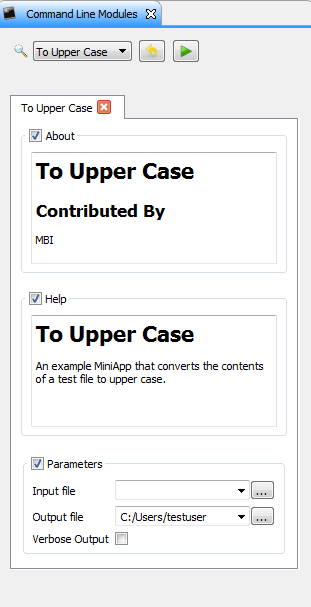

Generated UI of example command line tool in MITK Workbench